 News Feed
  Blog
Blog  Explore
  Events
  Forum
Forum  Jobs
Jobs  My Network

AND ITS 100% FREE! Interested? send me a PM for the link.
That's why I built VALU-N-CODE. Free, and tailored to exactly what deposition and trial work actually needs.
Here's the difference:
❌ Generic paid encoders you hunt through dozens of formats and guess at settings ✅ VALU-N-CODE presets named for the job: "MPEG-1 Sync/Legacy," "MP4 720p for TrialDirector," "MP3 for the reporter"
❌ Generic tools one file at a time, babysitting the queue ✅ VALU-N-CODE watch folders that auto-encode a firm's job folder the moment it lands
❌ Generic tools deliver a file with audio on one channel and hope nobody notices ✅ VALU-N-CODE "Legal Safe" audio guarantees sound on both channels, every time
❌ Generic tools manually split files to hit a delivery cap ✅ VALU-N-CODE set "no file over 800 MB" or "fit a 4 GB DVD" and it handles the splitting
❌ Generic tools per-seat licenses, renewals, activation ✅ VALU-N-CODE free, Windows + Mac, works offline in the courtroom
It's not that the paid tools are bad. It's that they're built for everyone and legal video isn't everyone.
Comparable power. Purpose-built. Free.
What VALU-N-CODE Does
VALU-N-CODE encodes deposition and legal video into the exact formats your clients, trialpresentation
tools, and courts require MPEG-1, MPEG-2, H.264/MP4, and audio-only exports
for reporters. It works fully offline (the encoding engine is built in), runs on Windows and Mac,
and is free.
Three ways to use it
Mode Best for
Encode (manual/
batch)
Pick files, pick a preset, encode now or queue several jobs and process them
together.
Watch Folders Set-and-forget. Point it at a folder; anything dropped in is encoded automatically to
that preset.
Help Me Choose Not sure which format? Answer a few questions and it picks the right preset for
you.
Quick Start Encode a Video
1 Click Choose files and select your video(s) MTS, MOV, MP4, and more.
2 Pick a Preset from the dropdown (grouped by MP4 HD/SD, MPEG-1/2, Audio). Or click ✨ Help
me choose.
3 Set an Output folder, or tick Save beside originals to put encodes in a subfolder next to the
source.
4 Click Encode now. Watch the live progress bar and time estimate.
Tip: The preset shows its exact specs (resolution, bitrate, audio) right below the dropdown, and predicts
the finished file size before you encode.
Presets Explained
Preset group Use it for
MP4 (HD) 720p ★, 1080p Modern sync/trial delivery. 720p is recommended most reliable in
TrialDirector/OnCue; 1080p can drift on long files.
VALU-N-CODE User Guide by Daniel Holmstock 2
MP4 (SD) 854480,
720480, Court e-file
Smaller MP4 deliverables and court electronic filing.
MPEG-1 / MPEG-2 (HD SD) Legacy legal deliverables and sync tools that require MPEG-1/2. The
352240 Sync/Legacy is the classic.
Repackage MTSMP4 Rewrap without re-encoding instant, no quality loss.
Export Audio MP3
192/128/320, WAV
Audio-only copies for court reporters and scopists. MP3 192k is the
scopist standard.
Custom presets: Click Customize on any preset to change resolution, bitrate, crop, or audio, then
save it with your own name (e.g. a specific firm's spec). Your custom presets are saved and kept across
updates. Export/import them under Settings.
Legal Safe Audio
By default, VALU-N-CODE guarantees audible sound on both channels no more silent-channel
deliverables when the mic was on one side only. Options:
Legal Safe (sum to both): mixes both channels to both sides. Never silent. The safe default.
Use Right / Left both: for rigs always wired the same way.
Pass through: leaves the master audio untouched.
Normalize loudness: optional only turn on if audio is low/inconsistent.
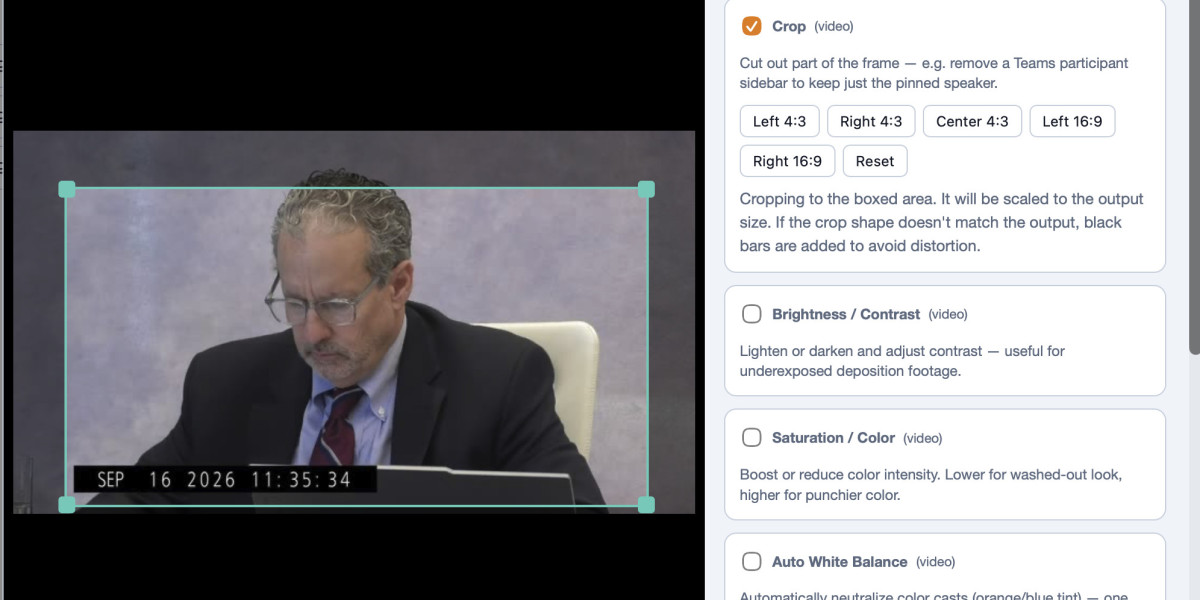
Editing a File Filters Crop
Click Edit on any file to open the editor. You'll see the video frame with controls beside it:
Crop drag a box (any corner) to cut out part of the frame e.g. remove a Teams participant
sidebar to keep only the pinned speaker. Or use quick presets (Left/Right 4:3, 16:9). Black bars
are added automatically if the crop doesn't match the output shape, so nothing is distorted.
Filters Brightness/Contrast, Saturation, White Balance (auto or manual), Sharpen, Denoise,
Deinterlace, plus audio hum/hiss removal. Tick one and adjust while the preview updates.
Scrub bar jump to any point in the video to preview the effect.
Apply to all files copy your settings to every loaded file at once.
Nothing changes your footage unless you tick a filter. Use Reset to clear all edits for that file.
VALU-N-CODE User Guide by Daniel Holmstock 3
Output Options Combine Size Limits
Combine all files into one
Joins multiple clips into a single output (e.g. SEC-style single-file delivery). Files are normalized so
they join cleanly.
Limit output size
Two modes, with a live size preview so you know before encoding:
Total cap (e.g. fit 4 GB on a DVD data disc): the app lowers the bitrate to fit everything under the
limit.
Per-file cap (e.g. no file over 800 MB or 1 GB): each output stays under the limit. With Split on, a
long file is broken into parts (_A, _B, _C) that each stay under the cap no quality loss.
Batch Processing
1 Set up a job (files + preset + output), then click + Add to batch.
2 The form clears set up the next job and add it too. Different presets/outputs per job are fine.
3 Click Process batch. Each job runs in turn; walk away and come back to a finished stack.
Watch Folders Set and Forget
Organize your top folder as Firm Job media files. Point VALU-N-CODE at the top folder, pick
a preset, and turn Watching on. Every video found in a subfolder is encoded automatically, with
output placed in a preset-named subfolder right beside the source. Files already done are marked
so they're never re-encoded. A live display shows Found / Encoding / Done and progress with time
estimates.
It re-checks every few seconds drop new files or new job folders any time and they're picked up
automatically. Files in the very top folder are ignored (only subfolders are processed).
Performance
Under Settings Performance, choose how much of your computer to use:
Mode What it does
VALU-N-CODE User Guide by Daniel Holmstock 4
Balanced
(default)
Runs a couple of encodes at once and keeps the computer responsive.
Maximum Scales to your hardware runs many encodes at once. Fastest throughput on
powerful machines.
Light One at a time, lowest CPU for when you need to keep working.
Hardware acceleration is automatic: H.264/MP4 uses your GPU (NVIDIA/AMD/Intel on Windows,
Apple VideoToolbox on Mac). MPEG-1/2 always run on CPU (no GPU supports them).
Getting Help
Under Settings you'll find Report a bug, Request a feature, and Contact for help each opens
an email to the developer. VALU-N-CODE is free; if it saves you time, the Tip Jar is appreciated.
Note for court/deposition use: the encoding engine is bundled in the app, so VALU-N-CODE works with
no internet connection ideal for courtrooms and secure environments.
I'd love for other legal videographers to try it and tell me where it can be better.
#LegalVideo #CourtReporting #Deposition #LegalTech #TrialPresentation #LegalVideographer